Browser Local Network Access (LNA) Blocking Twingate Resources
Last updated: April 3, 2026
Applicable to:
- Chrome/Chromium 142+ with Local Network Access enabled
- Firefox (Beta, Nightly, and standard releases with ETP set to Strict or Daily/Nightly)
- Mac, Windows, Linux
Overview
Both Chrome and Firefox now include Local Network Access (LNA) restrictions that can affect Twingate Resources accessed via the browser. Because Twingate routes traffic via CGNAT over loopback to the virtual Twingate interface, Resources are treated as local, triggering LNA permission prompts or blocks in both browsers.
If end users click Block or deny the permission prompt, they may lose access to Twingate Resources in the browser.
- Chrome: LNA is enabled by default starting in Chrome/Chromium 142.
-
Firefox: LNA is available in Beta and Nightly builds, and is being progressively rolled out to standard Firefox users who have Enhanced Tracking Protection (ETP) set to Strict.
- Firefox Daily/Nightly users have LNA enabled by default.
Symptoms
Chrome
- Endusers may not be able to access their Twingate Resources if they've clicked
Blockon the latest Chrome/Chromium browser. - CORS errors may be elevated
- Images may be blocked
- Twingate Resources may show as being
Not secure.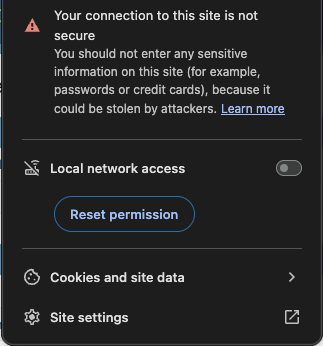
Firefox
- End users may not be able to access their Twingate Resources if they've clicked
Blockon the Firefox LNA prompt - CORS errors may be elevated
- Images may be blocked
- Twingate Resources may appear blocked or inaccessible
Workaround
Narrowing the scope of Twingate Resources that typically end up hitting public CDN services like Amazon, Cloudflare, or Azure:
*.amazonaws.com-
*.microsoftonline.com,azureedge.net, or*.azure.com, etc.
Admins can narrow Resource definitions to not include these endpoints in their Resource definitions if they are not explicitly required and can be resolved privately.
Chrome
Solutions will depend on whether managed browser profiles are applied to endusers and if admins are on Enterprise tier Google Workspace accounts.
Unmanaged browser profiles
End users may be able to self serve by:
- Click
Not Securein the address bar
- Toggle
Local Network Access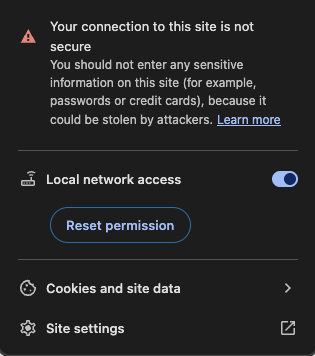
- OR, click
Site settingsand scroll toLocal network accessand click the drop down and selectAllow:
Advanced Configuration (chrome://flags)
Warning: These instructions are for advanced Chrome users. Changing flags in chrome://flags can have serious effects on your browser's stability, security, and performance. Only proceed if you are comfortable with advanced settings and understand the potential impacts.
End users who can manage their own browser can also disable via flag:
chrome://flags/#local-network-access-check
Enterprise Admin Controls
Google Enterprise administrators can pre-allow URLs that are defined as Twingate Resources, or choose to disable or opt out from LNA entirely. The key policy to configure is LocalNetworkAccessAllowedForUrls. See the Chrome Enterprise policy reference for platform-specific deployment formats (Windows registry, macOS plist, Android managed config).
Configure Chrome using Google Workspace
Managed Profiles need to be configured. See Manage user profiles on Chrome browser for setup details.
In the Google Admin Console, define LocalNetworkAccessAllowedForUrls (spec here)
- In the Workspace admin console, go to
Chrome Browser > Custom Configurations. - Select the target organizational unit.
- In Configurations, add the following JSON configuration ( replace with your own URLs ):
{
    "LocalNetworkAccessAllowedForUrls": [
        "https://your-internal-domain.int",
    ]
}- Click
Save. - Open chrome://policy and click
Reload policiesto confirm values are applied.
Learn more about configuring custom Chrome policies in Workspace - link
Configure Chrome via MDM
For MDM-managed devices, deploy the LocalNetworkAccessAllowedForUrls policy to pre-grant LNA permission for your Twingate URLs. Refer to the platform-specific docs and format details in the Chrome Enterprise policy reference:
- Windows (Intune): Deploy via OMA-URI using the Windows registry path shown in the Chrome Enterprise policy reference.
- macOS: Deploy via .mobileconfig using the plist format shown in the policy reference. See also Chrome Browser quick start (Mac)
- Android: Deploy via managed app configuration using the Android restriction name shown in the Chrome Enterprise policy reference.
Disable or opt out of LNA
Note: this is deprecated as of Chrome v144.
Administrators have the option of disabling LNA in custom profiles:
- https://chromeenterprise.google/policies/#LocalNetworkAccessRestrictionsEnabled
- https://chromeenterprise.google/policies/#LocalNetworkAccessRestrictionsTemporaryOptOut
Firefox
When a Twingate Resource triggers an LNA prompt, Firefox will display a permission prompt near the address bar, similar to camera or microphone permission prompts. Users can choose to Allow or Block access for that visit, and can check Don't ask again for this site to have Firefox remember the decision for all future visits.
Unmanaged browser profiles
End users may be able to self serve by:
-
Click the permissions icon in the address bar (last icon on the right before web address)

-
For the option
Access local network devices, click theXfollowingBlocked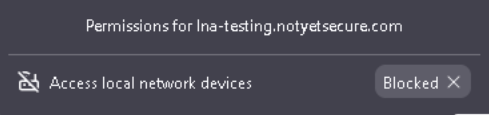
- Refresh the page
- When prompted again for allowing access for the page to the local network, click
Allow.- Check
Remember my choice for this sitebefore clickingAllowif you don't want to perform this step each time.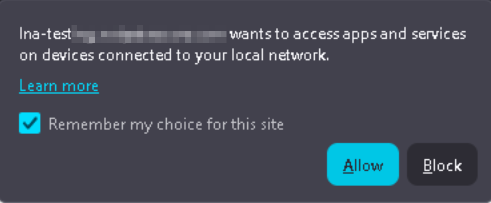
- Check
To manage saved permissions after the fact:
- Click the Firefox menu button (hamburger) and select
Settings - Go to the
Privacy & Securitypanel - Scroll down to the
Permissionssection - Find
Device apps and servicesand clickSettings...and use the dropdown next to each site to change access - Find
Local network devicesand clickSettings...and repeat step 4
Advanced Configuration (about:config)
Warning: These instructions are for experienced Firefox users. Changing settings in the Configuration Editor (about:config) can have serious effects on your browser's stability, security, and performance. Only proceed if you are comfortable with advanced settings and understand the potential impacts. See Mozilla's documentation for current details.
- Type
about:configin the address bar and pressEnter - If a warning page appears, click
Accept the Risk and Continue - Search for the preference name you want to modify
- Double-click to change boolean values (true/false), or click the edit icon for other value types
Available preferences:
-
network.lna.enabled(boolean, default:true) - Controls whether LNA checks are enforced. Set tofalseto disable all LNA restrictions. -
network.lna.blocking(boolean, default:true) - Controls blocking behavior. Set tofalseto allow access without prompts when LNA is enabled. -
network.lna.block_trackers(boolean, default:false) - Experimental. Blocks third-party trackers from accessing localhost and local network resources. Set totruefor additional protection. -
network.lna.skip-domains(string, default: empty) - Comma-separated list of domains that should skip LNA checks. Supports wildcards with.prefix (e.g.,.company.com). Example:intranet.company.com,*.devices.local
Enterprise Admin Controls
For enterprise environments, administrators can use the LocalNetworkAccess policy to manage these settings organization-wide. See the Firefox Enterprise Policy Documentation for more information.