Collecting and exporting a packet capture
Last updated: June 30, 2026
Overview
A packet capture (PCAP) contains network traffic going to and from the system it was captured on, for troubleshooting and analysis purposes. These PCAPs can be quite useful when diagnosing exotic networking issues!
This guide will focus on capturing PCAPs using Wireshark and tcpdump.
Setup
Wireshark
Wireshark can be downloaded and installed from the official Download page. For macOS and Windows, the stable releases will be located at the top of the page. For stable Linux releases, for various distributions, look to the bottom of the Download page, under the Third-Party Packages section.
tpcdump
tcpdump is primarily used on systems running Linux/macOS as it comes pre-installed on macOS and on most Linux distributions.
If you require tcpdump and it's not installed on your Linux system then please follow the package installation method for your system's package manager. For example, installing tcpdump on Debian-based distributions can be done with:
sudo apt-get install tcpdumpSimilarly, for RPM-based distributions:
sudo yum install tcpdump
Capturing a PCAP
Wireshark
Start Wireshark
Select all the available interfaces by first selecting the first interface in the list:
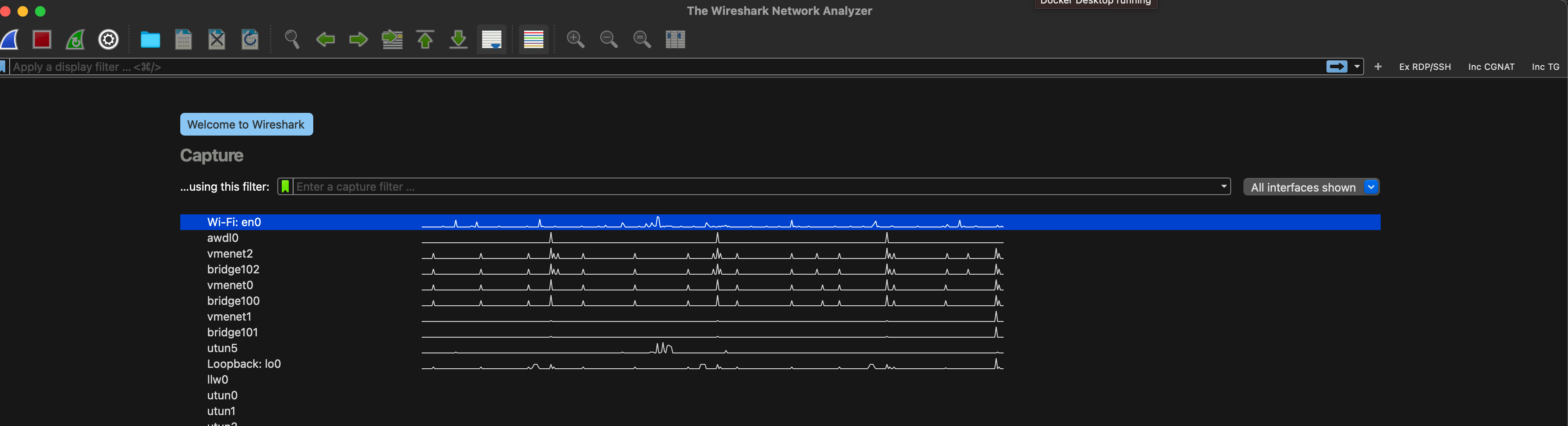
And then, while holding the Shift key, select the last interface in the list: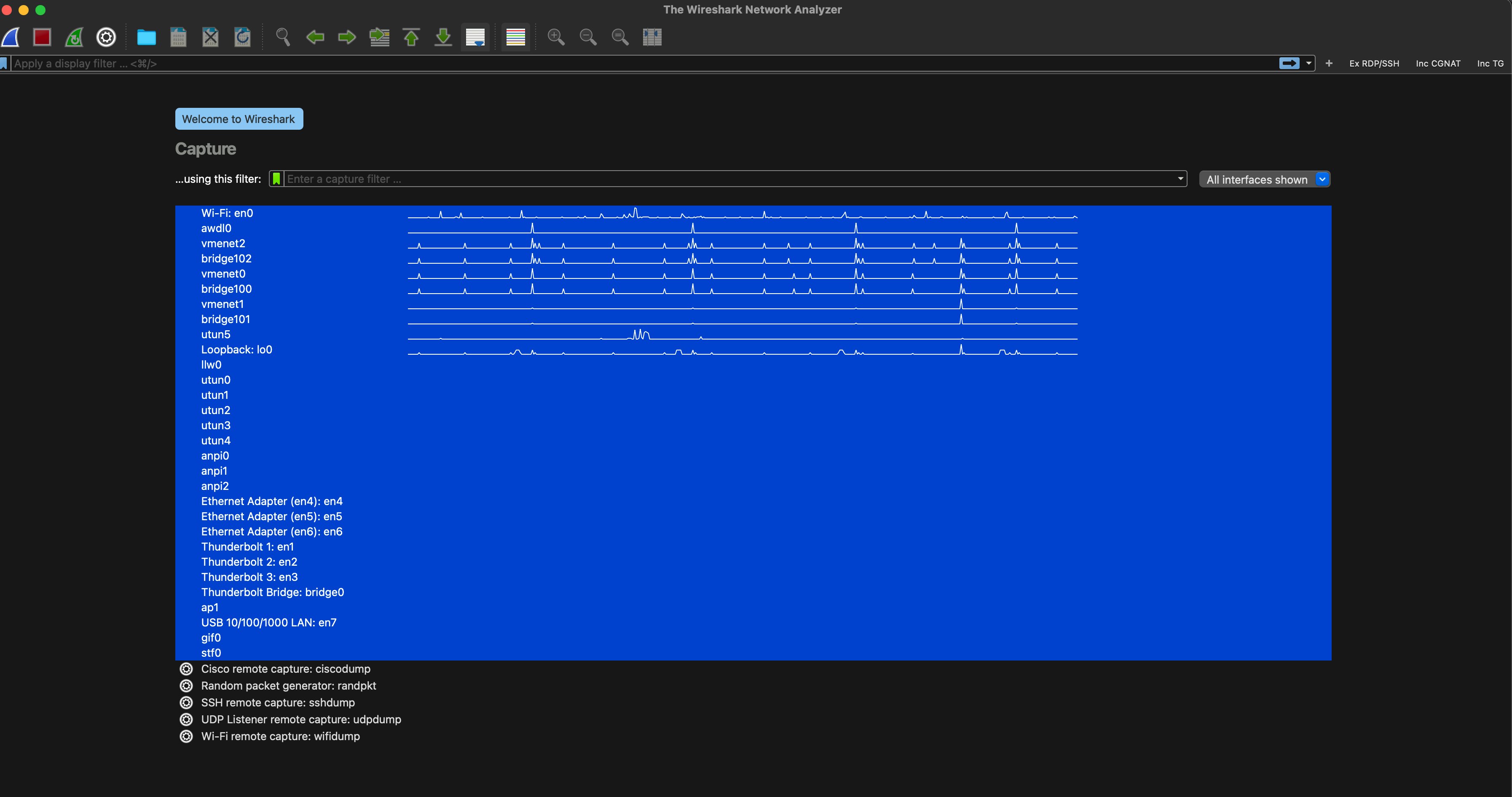
Once you have all the interfaces selected, hit the start packet capture button in the top left:
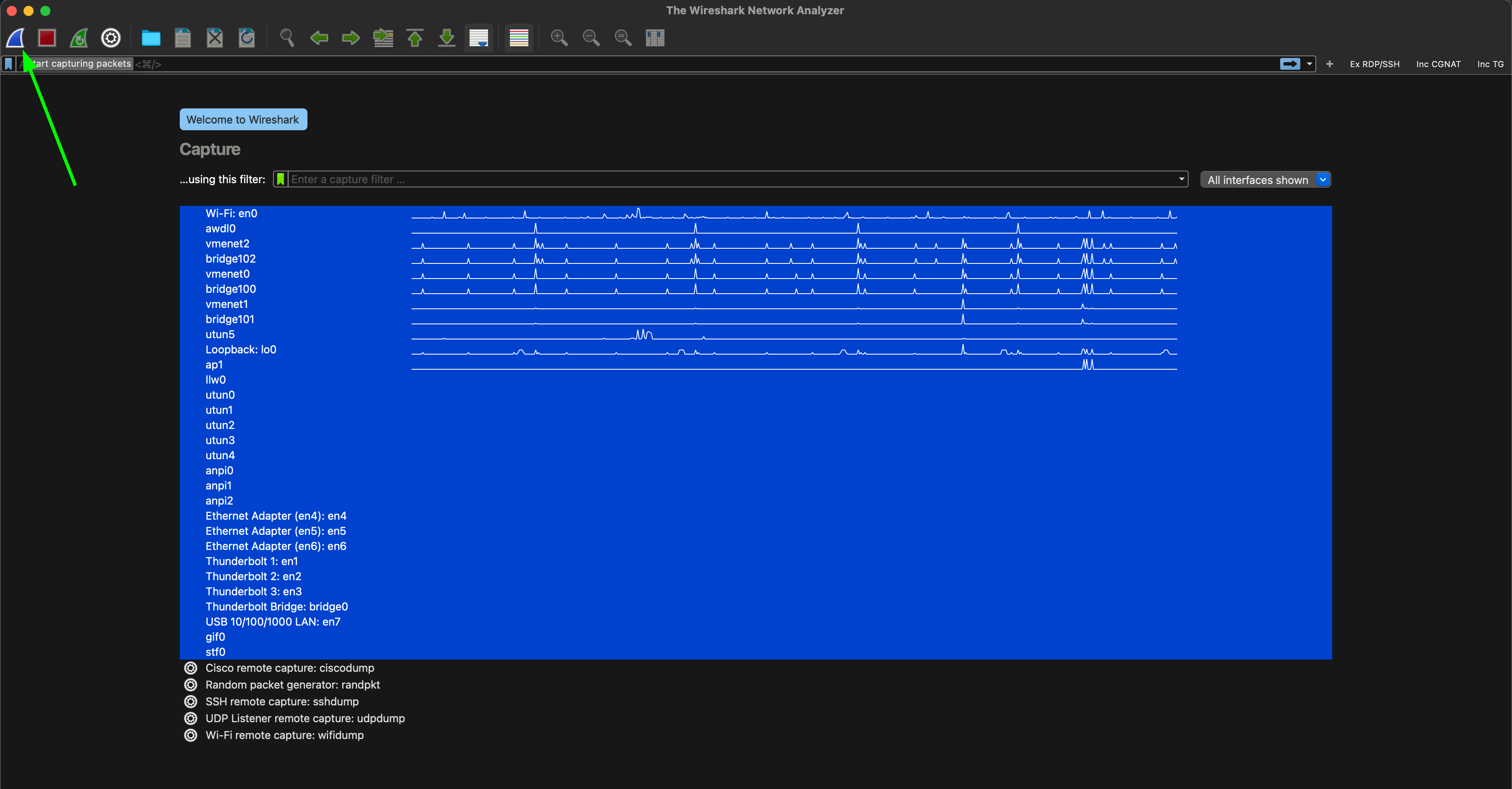
Note: If you encounter any error popups regarding unsupported operations, just accept them without worry. Once they've been cleared, the packet capture should start successfully.At this point, whatever is being investigated, should be reproduced on the machine running the packet capture.
Once the desired network traffic has been captured, please press the stop capture button in the top left:
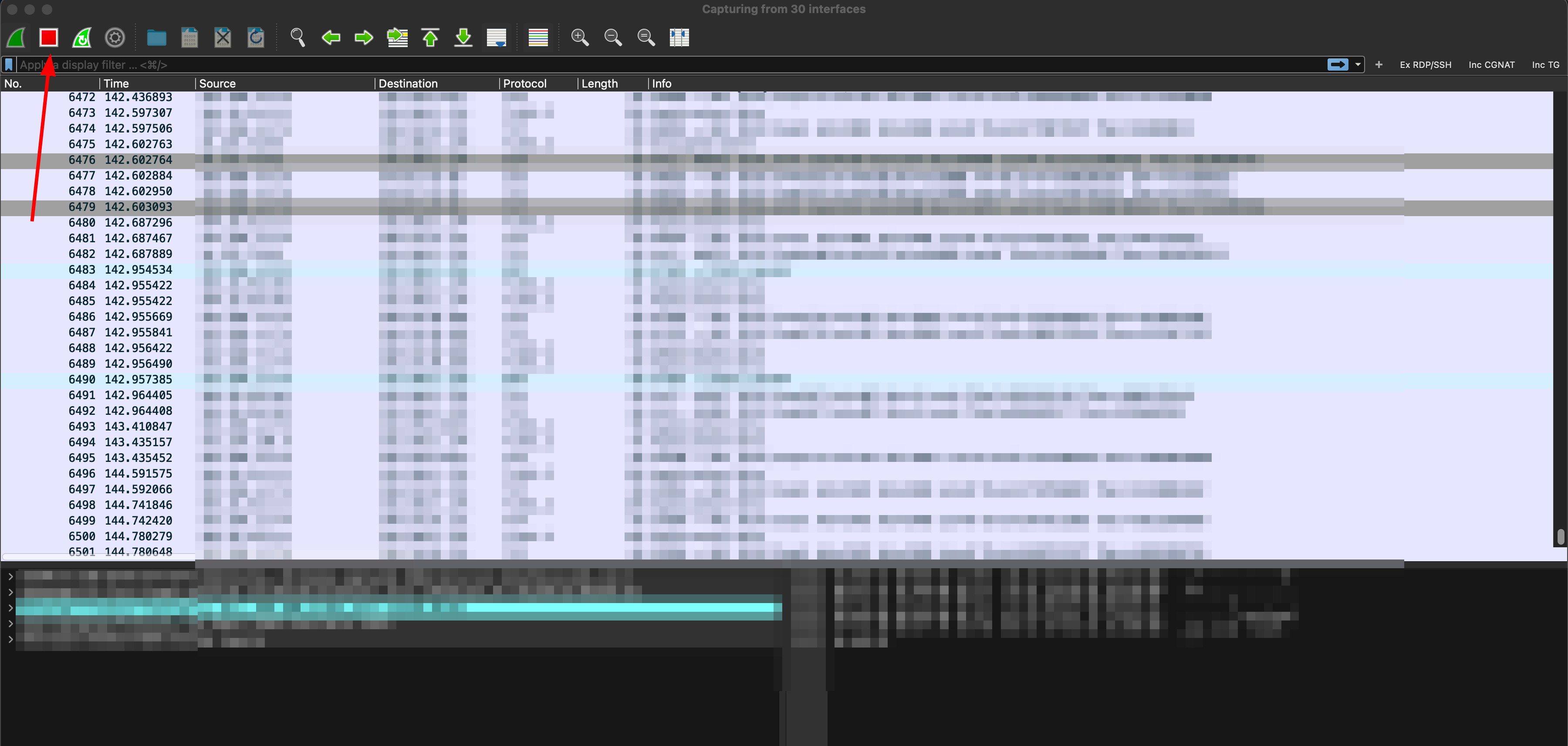
Once everything has been captured, please Select File -> Save As and then appropriately name the file while ensuring that pcapng is selected in the Save as type section.
tcpdump
From a terminal window, run the following command to capture network traffic on all interfaces:
sudo tcpdump -i any -s 0 -w $(hostname).capPress Cmd+C(macOS) or Ctrl+C(Linux), in the same terminal window, to end the packet capture.
The PCAP will be located in the directory the command was run in under a name that follows this format:
my_device.cap
Capturing a rolling PCAP
Sometimes problems occur intermittently and the process for reproducing them is unclear. In these cases, Twingate support may recommend capturing a "rolling PCAP" where a capture can be configured to keep running while only saving a certain amount of data. This way PCAPs can be run in the background while controlling the max storage size of the captures (if the problem takes a while to reproduce).
Wireshark
Just like you would for a regular packet capture with Wireshark, select all your active interfaces:
Next, navigate to Capture > Options:
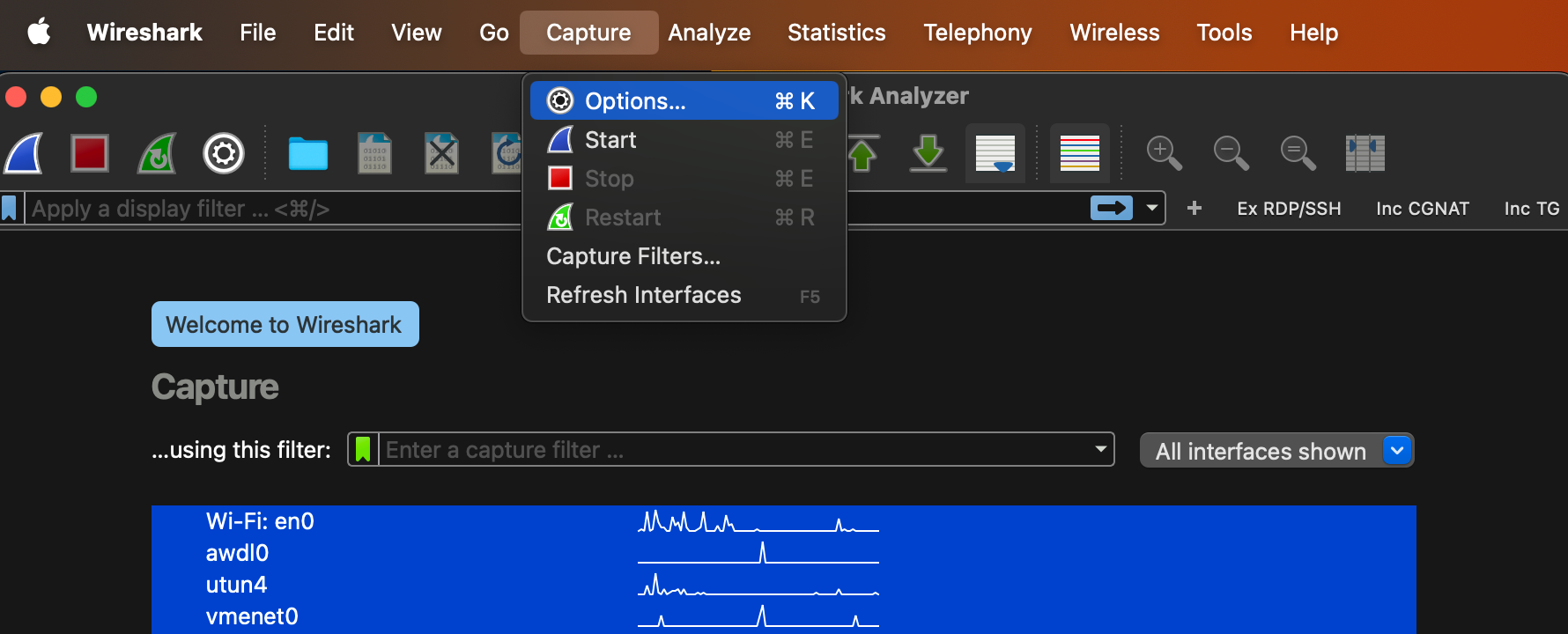
Navigate to the Output tab, in this configuration window
Select a folder and a filename (can be anything, example filename: tg_pcaps) where the rolling PCAPs will be stored. Make configure remaining rolling file capture settings as follows:
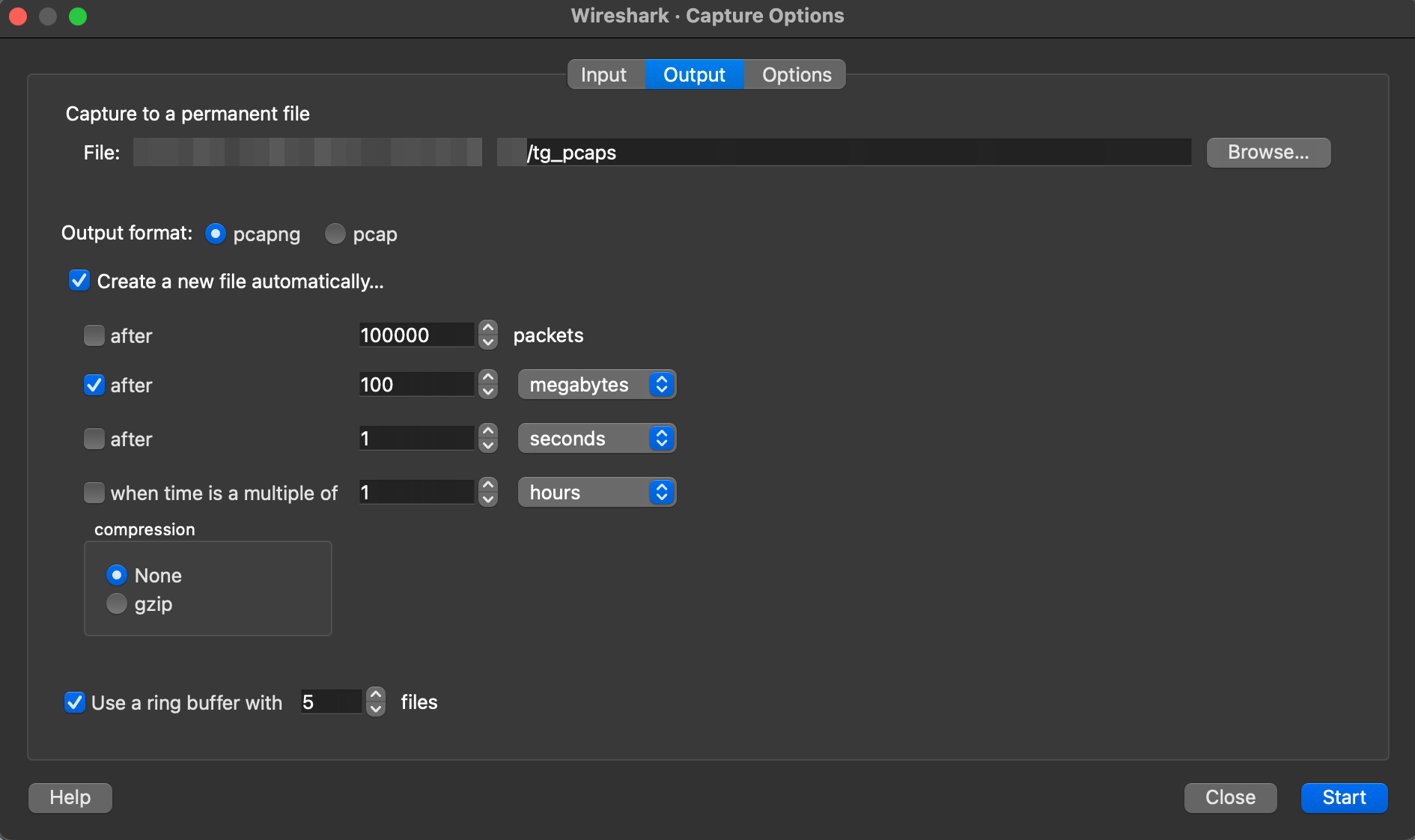
Press Start, in the bottom right of the configuration menu, to start your PCAP
Note: If you encounter any error popups regarding unsupported operations, just accept them without worry. Once they've been cleared, the packet capture should start successfully.Once the desired network traffic has been captured, please press the stop capture button in the top left:
No manual saving is required when using rolling packet captures. The Wireshark window can be safely closed.The PCAPs will be stored inside the folder specified in the previous configuration window.
tcpdump
Use the following command to capture a rolling PCAP:
sudo tcpdump -i any -s 0 -w $(hostname).cap -C 100 -W 5 -z rootThe command will create and save PCAP files in the format:
my_device.cap*Press Ctrl+C(Linux), in the same terminal window, to end the packet capture. Alternatively, if the process was run in the background you can stop it using it's PID.
Up to 5 PCAPs will be created, up to 100MB each. When all 5 files are full, the packet capture will over-write the data in the oldest file.
Notes:
When sharing rolling PCAPs with Twingate support, please share all the PCAP files that are generated.
Depending on the size of the generated PCAPs, it may be useful to zip and compress the files before sharing them with Twingate support.