[Windows Client] System Service Is Not Running
Last updated: April 3, 2026
Applicable to:
- Twingate Component: Client
- Platform: Windows
Overview
The Twingate Windows Client relies on a the Windows Twingate Service component. If the Twingate Windows Service is not started and running, the Windows Client will fail to establish connectivity.
Symptoms
- The Windows Client does not connect.
- The Windows Client has a popup with the error message below:
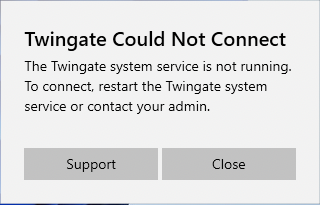
Twingate Could Not Connect

The Twingate system service is not running. To connect, restart the Twingate system service or contact your admin.
Troubleshooting
- Hold down the Windows Key and Press R on your keyboard.
- Type services.msc and press Enter.
- Scroll down in the services list to Twingate Service.
- If status is null or not running, proceed to resolution.
- If service is running and set to
Automaticperform the below:- Restart service and ensure it start.
- Restart the Twingate Client application.
- Try to connect to the Twingate network again.
- If the service fails to start perform the below:
- Check to see if Twingate TAP network adapter is present and not disabled.
- Collect detailed logs and open a ticket with Twingate Support for further review.
Resolution
Start the Twingate Windows Service and ensure it is set to automatic startup via the below steps.
- Hold down the Windows Key and Press R on your keyboard.
- Type services.msc and press Enter.
- Scroll down to the Twingate Service rc.
- Right click on Twingate Service rc > Start.
-
Right click on Twingate Service rc > Click on Properties > set Startup Type to
Automatic.